
What is Google Veo?
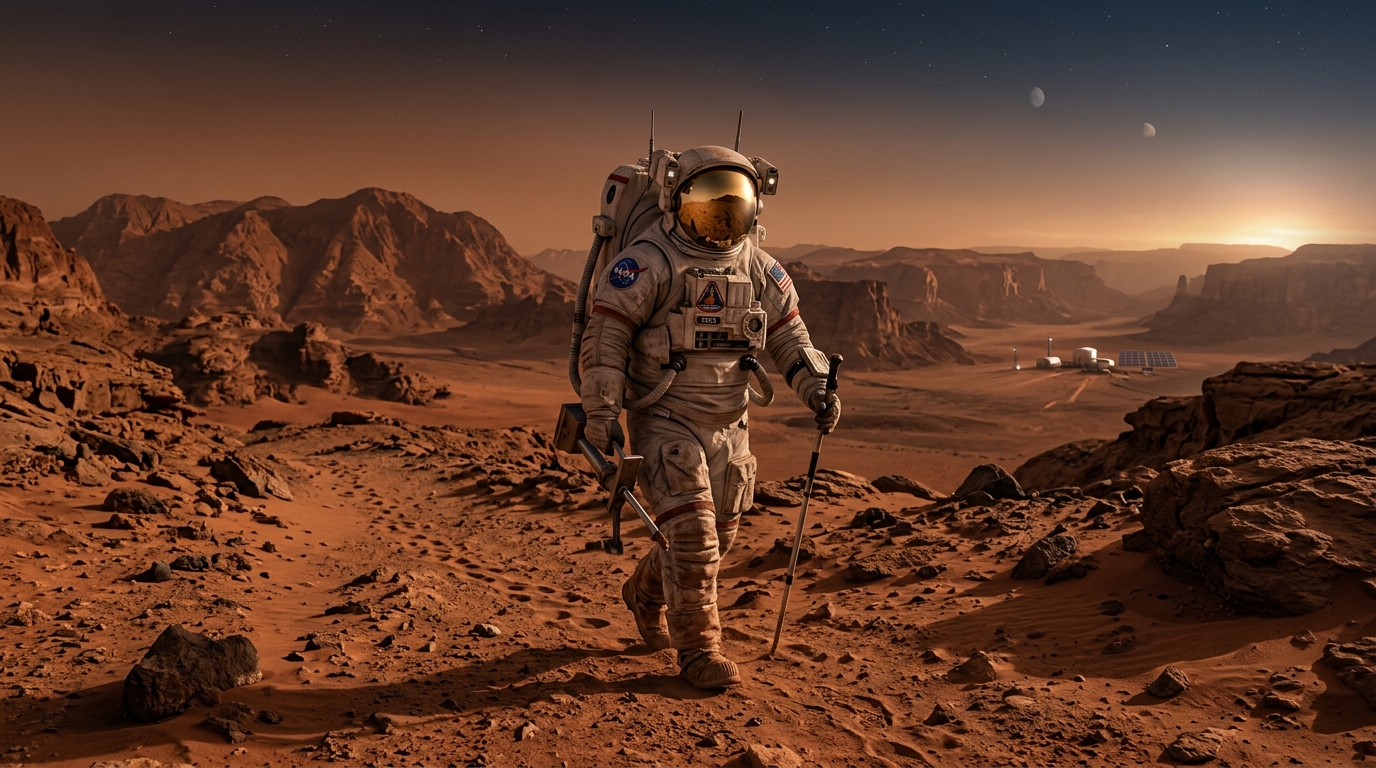
Google Veo is DeepMind's video generation model, currently at version Veo 2. It is widely regarded as one of the most photorealistic AI video generators available, with a particular strength in natural physics simulation — water movement, lighting transitions, atmospheric effects, and material behavior all render with exceptional accuracy.
Veo is also the underlying engine behind Flow Studio, Google's video creation platform that allows creators to build longer narrative videos by chaining generated clips together. If you are working in Flow Studio, the prompts from this tool are designed to work seamlessly with that workflow.
How Veo Prompts Work
Unlike image generation models that respond well to keyword-dense prompts, Veo is optimized for natural language motion descriptions. The model is trained to understand scene narratives, so the most effective prompts read more like a camera direction note than a tag list. Focus on one motion at a time and describe it clearly:
Street-level shot of rain falling on cobblestones at night, neon reflections shimmering on wet surface, puddles forming, 4 seconds, atmospheric
Each element contributes: the camera position sets the perspective, the primary motion anchors the scene, the secondary details add depth, and the duration tells Veo how much temporal space to fill.
Veo's Strengths
Example Veo Prompts
Slow aerial drone descending over misty mountain lake at golden sunrise, water rippling gently, morning fog drifting between peaks, 6 seconds, cinematic
Street-level shot of rain falling on cobblestones at night, neon reflections shimmering on wet surface, puddles forming, 4 seconds, atmospheric
Close-up of candle flame flickering in gentle breeze, wax melting slowly, warm light dancing on nearby objects, 3 seconds, intimate
Tips for Best Results with Veo
- Separate camera path from subject motion: Describe what the camera does and what the subject does as distinct elements. "Camera tracks left while subject walks right" is clearer than combining the two.
- Use natural language, not AI jargon: Avoid terms like "hyperrealistic" or "8k" — Veo responds to narrative description, not quality keywords. Describe the scene as if narrating to a director.
- Specify duration: Including a clip length (e.g., "4 seconds", "6 seconds") helps Veo pace the motion correctly across the available time.
- Mention lighting changes: If light shifts during the clip — sunrise brightening, a lamp turning on, shadows moving — describe it explicitly. Veo handles these transitions exceptionally well.
- Focus on one motion at a time: Veo produces more coherent results when each prompt describes a single primary motion event rather than multiple competing actions.
Frequently Asked Questions
How do I write a good Veo prompt?
Focus on natural language motion descriptions. Describe what moves, how it moves, and the camera perspective. Veo works best with clear, focused descriptions rather than lists of keywords.
What's the maximum video length Veo supports?
Veo 2 can generate clips up to 8 seconds in standard mode. Flow Studio (Google's video creation platform using Veo) supports longer sequences by chaining clips together.
Can I use a reference image with Veo?
Yes, Veo supports image-to-video generation. Upload a still image and describe the motion you want applied to it — our Image to Video Prompt tool generates optimized prompts for this workflow.
Is Veo free to use?
Veo is available through Google's AI Test Kitchen, Flow Studio, and Google Workspace. Access tiers vary — some free experiments are available but commercial use requires paid access.