You found an image that perfectly captures what you want to create — a specific lighting style, a particular mood, an aesthetic you can't quite describe in words. The problem: you need a text prompt to recreate or remix it in an AI image generator. That's exactly what image-to-prompt tools solve, and in 2026 there are more options than ever. This guide cuts through the noise with honest assessments of the seven tools that actually matter.
We tested each tool against the same set of 20 reference images — portraits, landscapes, anime, concept art, and photorealistic renders — and graded them on accuracy, speed, output format compatibility, and ease of use. Here's what we found.
Why Image-to-Prompt Tools Matter in 2026
AI image generation has matured from a novelty into a serious creative tool used by illustrators, game designers, marketers, and hobbyists alike. But one persistent frustration remains: the gap between having a visual reference and producing the text prompt that will recreate or extend it.
Manually reverse-engineering a prompt from an image requires deep knowledge of each model's vocabulary, an understanding of how different descriptors affect output, and often dozens of iteration cycles. Image-to-prompt tools compress that process from hours to seconds. They're useful in several specific scenarios:
- Style matching: You want to generate images in the same visual style as an existing piece of art, photo, or render.
- Prompt recovery: You generated an image you love but forgot to save the prompt — or the prompt was lost when switching tools.
- Learning: Understanding how an expert-crafted image translates to prompt language teaches you how to write better prompts yourself.
- Cross-model translation: Converting a Midjourney image into a Stable Diffusion-compatible prompt, or vice versa.
- Variation seeding: Getting a solid prompt baseline that you can then manually tweak for variations.
The quality of these tools varies enormously. Some produce generic descriptions; others identify specific lighting rigs, artist styles, and technical camera settings. Let's look at each one.
Quick Comparison Table
| Tool | Free? | Models Supported | Accuracy | Speed | Special Features |
|---|---|---|---|---|---|
| ImageToPrompt.dev | Yes (10/day) | MJ, SD, Flux, DALL·E 3, Firefly, Leonardo, Ideogram | ★★★★★ | ~5–8s | Model-specific output, style selector, 10 languages |
| CLIP Interrogator | Yes (Colab) | SD 1.5, SDXL | ★★★☆☆ | 30–60s (Colab) | BLIP + CLIP combo, artist/style emphasis |
| WD14 Tagger | Yes (Hugging Face) | SD anime models | ★★★★☆ (anime only) | ~3–5s | Booru tag output, NSFW detection |
| Midjourney /describe | No (subscription) | Midjourney only | ★★★★☆ | ~10–15s | 4 prompt variations, MJ-native syntax |
| ChatGPT Vision | Limited (GPT-4o) | Any (manual) | ★★★★☆ | ~8–12s | Conversational refinement, broad knowledge |
| Gemini Vision | Yes (Gemini 2.0 Flash) | Any (manual) | ★★★☆☆ | ~6–10s | Google ecosystem integration |
| SD img2img | Yes (local) | SD models only | N/A (not a prompt extractor) | Varies | Direct image conditioning, no prompt needed |
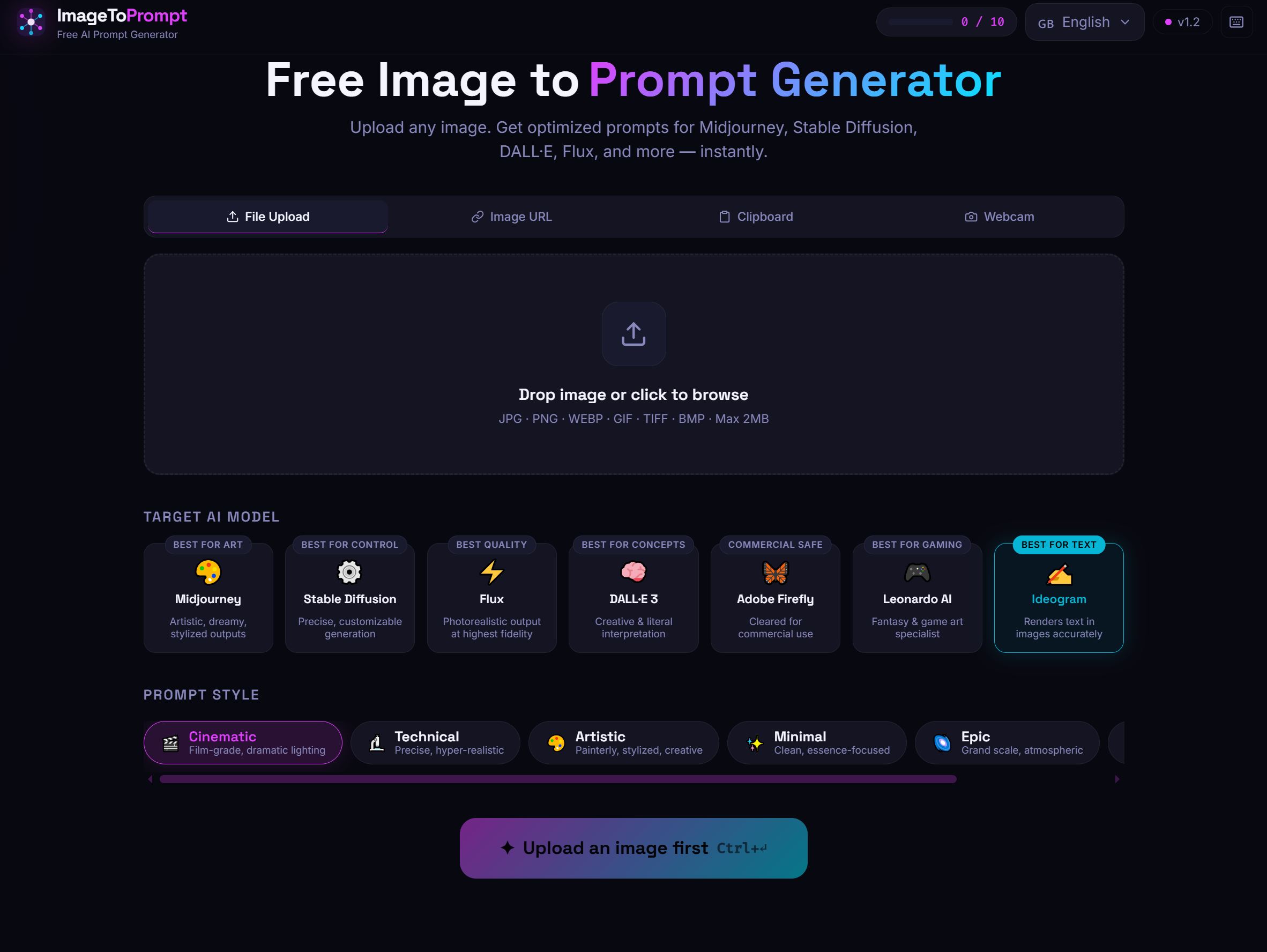
1. ImageToPrompt.dev — Best Overall for Most Users
ImageToPrompt.dev is the only tool in this list purpose-built for the single task of converting any image into an optimized, model-specific AI prompt. Where general-purpose vision AI gives you a description, ImageToPrompt gives you a ready-to-paste prompt formatted exactly for your target model.
The key differentiator is model-aware output. When you select Midjourney as your target, the tool produces prompts with proper MJ parameter syntax (--ar 16:9 --style raw --v 6.1). Select Stable Diffusion and you get weighted tag-style output with a negative prompt. Select Flux and you get natural-language cinematic descriptions with camera and lens details. The same reference image produces genuinely different outputs depending on your target model — not just reformatted text.
A real output example for a portrait photograph when targeting Midjourney:
A close-up portrait of a young woman with auburn hair, soft afternoon light streaming through sheer curtains, shallow depth of field, film grain, warm tones, intimate and contemplative mood, shot on 85mm f/1.4 lens --ar 4:5 --style raw --v 6.1The same image targeting Stable Diffusion:
(masterpiece:1.2), (best quality:1.1), portrait of a young woman, auburn hair, soft window light, bokeh background, film grain, warm color grading, shallow depth of field, 85mm portrait lens, intimate mood
Negative: (worst quality:1.4), (low quality:1.3), blurry, overexposed, bad anatomy, watermark
Strengths:
- Free with no account required (10 analyses per day per IP)
- Supports 7 major AI image generators with model-specific formatting
- Style presets (photorealistic, cinematic, anime, illustration) that guide output
- 10 output languages including English, Japanese, Spanish, French, German
- Processes images in 5–8 seconds using Claude Vision
- Clean interface that works on mobile
Weaknesses:
- 10/day limit on the free tier may feel restrictive for heavy users
- No API access for automation workflows
- Doesn't run locally (requires internet connection)
Best for: Anyone who needs ready-to-use prompts for a specific AI model without manual reformatting. Especially useful when switching between models or working with reference images in creative projects.
2. CLIP Interrogator — Best for Stable Diffusion Power Users
CLIP Interrogator, developed by pharmapsychotic and widely available through Hugging Face Spaces and Google Colab notebooks, combines two models: BLIP (for image captioning) and CLIP (for matching images to text embeddings). The result is a prompt that typically includes a scene description, an artist style reference, and medium/aesthetic descriptors.
A typical CLIP Interrogator output for a landscape painting:
a painting of mountains at sunset with a river in the foreground, by Thomas Cole, hudson river school, romanticism, oil on canvas, golden hour, dramatic clouds, highly detailed, trending on artstationThe artist attribution is CLIP Interrogator's distinctive strength. It has an extensive vocabulary of artist names and can often correctly identify stylistic influences. This is invaluable when you want to generate images "in the style of" a particular artist school or aesthetic movement.
The main drawbacks are setup friction (running a Colab notebook is not beginner-friendly) and speed (Colab free tier GPUs can take 30–60 seconds per image). There's also a Hugging Face Spaces version that's slower on free shared hardware. Output is SD-centric and doesn't translate well to Midjourney or Flux syntax without manual adjustment.
Best for: Stable Diffusion users who want artist-attributed prompts and are comfortable with Colab or Hugging Face Spaces.
3. WD14 / Booru Tagger — Best for Anime and Illustration
The WD14 Tagger (and its predecessor WD 1.4) was trained on Danbooru and Gelbooru image datasets, making it highly specialized for anime, manga, and illustration-style images. Instead of prose descriptions, it outputs structured booru tags: individual words or short phrases separated by commas, each corresponding to a specific visual attribute.
For an anime character portrait, WD14 might output:
1girl, solo, long hair, blue eyes, school uniform, white shirt, blue skirt, smile, looking at viewer, blush, cherry blossoms, outdoors, anime style, high qualityThis tag-based output is precisely what most anime-focused SD models expect. Checkpoints like Anything V5, Counterfeit, and NovelAI were trained on booru-tagged datasets, so this format feeds them naturally. WD14 also has NSFW detection built in, flagging or filtering explicit content in the output.
The tool is available as a built-in extension in AUTOMATIC1111 and as a standalone Hugging Face Space. Processing is fast — typically 3–5 seconds even on modest hardware.
Strengths: Extremely accurate for anime/illustration, fast, structured output compatible with anime SD models, NSFW filtering
Weaknesses: Useless for photorealistic images, outputs are not compatible with Midjourney or Flux syntax, limited to anime/illustration domain
Best for: Anime and illustration workflows using Stable Diffusion. If you're generating realistic photos or landscapes, use a different tool — WD14 will produce nonsensical output for photographic content.
4. Midjourney /describe — Best Native MJ Tool
Midjourney's built-in /describe command is the only tool here that produces prompts guaranteed to work well with Midjourney's specific aesthetic engine. You upload an image to the Midjourney Discord bot, type /describe, and receive four distinct prompt interpretations in Midjourney's native syntax.
Example output from /describe for a cyberpunk cityscape:
1. neon lit cyberpunk city at night, rain slicked streets, holographic advertisements, towering megastructures, atmospheric fog, cinematic composition --ar 16:9

2. a futuristic dystopian metropolis, glowing signs in Japanese and English, street level view, crowd of figures in trench coats, blade runner aesthetic --ar 16:9 --style cinematic

3. high tech low life urban environment, rain and neon reflections, gritty realism, cyberpunk 2077 visual style, dramatic lighting --ar 16:9

4. retrofuturistic city, dense vertical architecture, flying vehicles, atmospheric haze, ultra detailed environment concept art --ar 16:9 --style raw
Having four variations is genuinely useful — you can pick the interpretation that best matches what you want, or combine elements from multiple versions. The outputs are calibrated for Midjourney's current model version and often include parameter suggestions.
The significant limitation is cost: /describe only works inside a Midjourney subscription (starting at $10/month), and each use consumes GPU time from your plan. It's also Midjourney-only — the output syntax won't work in Stable Diffusion or Flux without significant manual editing.
Best for: Existing Midjourney subscribers who want native-syntax prompts. Not worth paying for if you use other generators.
5. ChatGPT Vision — Best for Conversational Refinement
GPT-4o's vision capabilities can analyze any image and generate AI art prompts if you ask correctly. The advantage over purpose-built tools is the conversational interface — you can ask follow-up questions, request format changes, or iteratively refine the output.
An effective ChatGPT prompt for image analysis:
Analyze this image and write me a detailed Stable Diffusion prompt that would recreate its visual style, lighting, composition, and mood. Include a negative prompt. Use (keyword:weight) syntax for the most important elements.ChatGPT excels at capturing narrative and atmospheric qualities that more technical tools miss. It's especially good at art historical references, identifying color theory choices, and describing compositional techniques.
The main issue is reliability and friction. You need a ChatGPT Plus subscription ($20/month) for GPT-4o access, the outputs are inconsistent in format, and there's no model-specific optimization — you have to specify the format manually each time. ChatGPT also tends toward verbose creative writing rather than tightly formatted AI prompts.
Best for: Power users who want conversational control and are willing to guide the output format manually. Good for learning prompt writing because you can ask "why did you include that descriptor?"
6. Gemini Vision — Best Free General-Purpose Option
Google's Gemini 2.0 Flash model offers strong vision capabilities and is available free through Gemini.google.com. Like ChatGPT, it requires you to ask for a prompt in the correct format — it's not purpose-built for this task.
Gemini's outputs tend to be accurate in terms of visual description but less refined in AI art vocabulary compared to purpose-built tools. It frequently produces generic aesthetic descriptors ("beautiful," "highly detailed") rather than the specific technical language that distinguishes professional prompts.
However, for basic use cases — "describe this image so I can recreate the general style" — Gemini Flash is free, fast, and requires no account beyond a Google login. It also handles non-English input and output well, which is useful for international users.
Best for: Casual users who need basic prompt extraction and don't want to sign up for specialized tools. Also useful as a secondary check when other tools produce unexpected output.
7. Stable Diffusion img2img — A Different Approach
Strictly speaking, SD img2img is not an image-to-prompt tool — it's an image conditioning tool. Instead of converting your reference image into text, it uses the image directly as a visual starting point, with a denoising strength parameter controlling how closely the output adheres to the reference.
We include it here because many users searching for "image to prompt" actually want what img2img provides: the ability to generate variations of an existing image without writing a detailed prompt from scratch. A minimal prompt like oil painting style, warm tones combined with a photographic reference at 0.5 denoising strength can produce compelling results.
The approach has real advantages for certain workflows — particularly style transfer and maintaining consistent characters across multiple generations. But it requires running SD locally or through a cloud service, and the output images are tied to the specific SD model you're using rather than being transferable to Midjourney or Flux.
Best for: SD users who want visual variations rather than text prompts. Not useful if your goal is to use the reference image in a different AI generator.
How to Choose the Right Tool for Your Use Case
The right tool depends on your specific workflow:
- You use multiple AI generators: ImageToPrompt.dev, because it outputs model-specific prompts for 7 different tools from a single interface.
- You exclusively use Midjourney: /describe is worth using alongside ImageToPrompt, since it produces MJ-native syntax directly from Midjourney's own model.
- You work with anime and SD: WD14 Tagger for structured booru tags, potentially combined with CLIP Interrogator for artist-style references.
- You want to learn prompt writing: ChatGPT Vision lets you ask follow-up questions about why certain descriptors were chosen.
- You need it completely free with no limits: Gemini Flash for basic analysis; ImageToPrompt.dev for 10 high-quality analyses per day.
- You work entirely within SD locally: CLIP Interrogator via A1111 extension for the most integrated experience.
Tips for Getting Better Results from Any Image-to-Prompt Tool
Regardless of which tool you choose, these practices consistently improve output quality:
- Use high-resolution, uncompressed source images. JPEG compression artifacts confuse vision models. PNG or lossless files produce more accurate analysis. At minimum, use images larger than 512×512 pixels.
- Crop to the subject matter you care about. If you want to capture a specific lighting style, crop to show just the lit portion rather than including irrelevant background elements that dilute the analysis.
- Specify your target model before running analysis. Tools that support model selection (like ImageToPrompt) will produce dramatically better output when they know where the prompt is going.
- Use style presets when available. "Cinematic," "photorealistic," and "illustration" presets prime the analysis model to emphasize the right descriptors for your workflow.
- Manually remove inaccurate descriptors. Even the best tools occasionally hallucinate details. Always read the output before pasting into your generator — one wrong descriptor can derail an entire generation.
- Combine multiple tool outputs. WD14 for the character tags + CLIP Interrogator for the artist/style attribution + ImageToPrompt for the formatted structure can yield stronger results than any single tool alone.
- Iterate: generate, compare, refine. Use the extracted prompt as a starting point, generate an image, identify what's missing or wrong, and add/remove descriptors accordingly. Most good prompts require 3–5 iteration cycles.
Pro tip: When reverse-engineering a style (rather than a specific image), find 3–5 exemplar images and analyze each one. Look for common descriptors across all outputs — those consistent terms are the ones that actually define the style.
Frequently Asked Questions
Are image-to-prompt tools accurate enough to actually recreate an image?
They're accurate enough to capture style, mood, and general composition — but don't expect pixel-perfect recreation. AI image generators are probabilistic, so even the original prompt used to create an image won't produce an identical result twice. The goal of image-to-prompt tools is to get you 70–80% of the way there with a solid starting prompt, not to clone an image exactly. Think of the output as a creative foundation rather than a precise specification.
Can I use these tools to recreate copyrighted artwork?
This is legally and ethically complex territory. Extracting prompts from an image doesn't automatically grant rights to recreate that image commercially. Generally: using reference images for personal style exploration is low-risk; generating commercial work that closely mimics a specific living artist's style is high-risk. When in doubt, use reference images from public domain art, your own photos, or stock images you have rights to.
Why do different tools produce such different prompts for the same image?
Each tool uses a different underlying vision model with different training data, vocabularies, and optimization targets. CLIP Interrogator's CLIP model was trained to match images to text descriptions from the internet; WD14 was trained on anime tagging data; ImageToPrompt uses Claude Vision, which was trained on a broad dataset with instruction-following capabilities. The same visual input maps to different "languages" depending on which model is doing the translation.